Register and manage OIDC clients
Use the OIDC Clients screen to manage clients that external systems and SSO applications use to obtain D.Hub tokens. This screen supports both machine-to-machine (M2M) calls and delegated user sign-in.
Only users with the Administrator type can access this screen. A user without permission who opens the address directly is redirected to Home.
Open OIDC Clients
Select System → Settings → OIDC Clients in the sidebar.
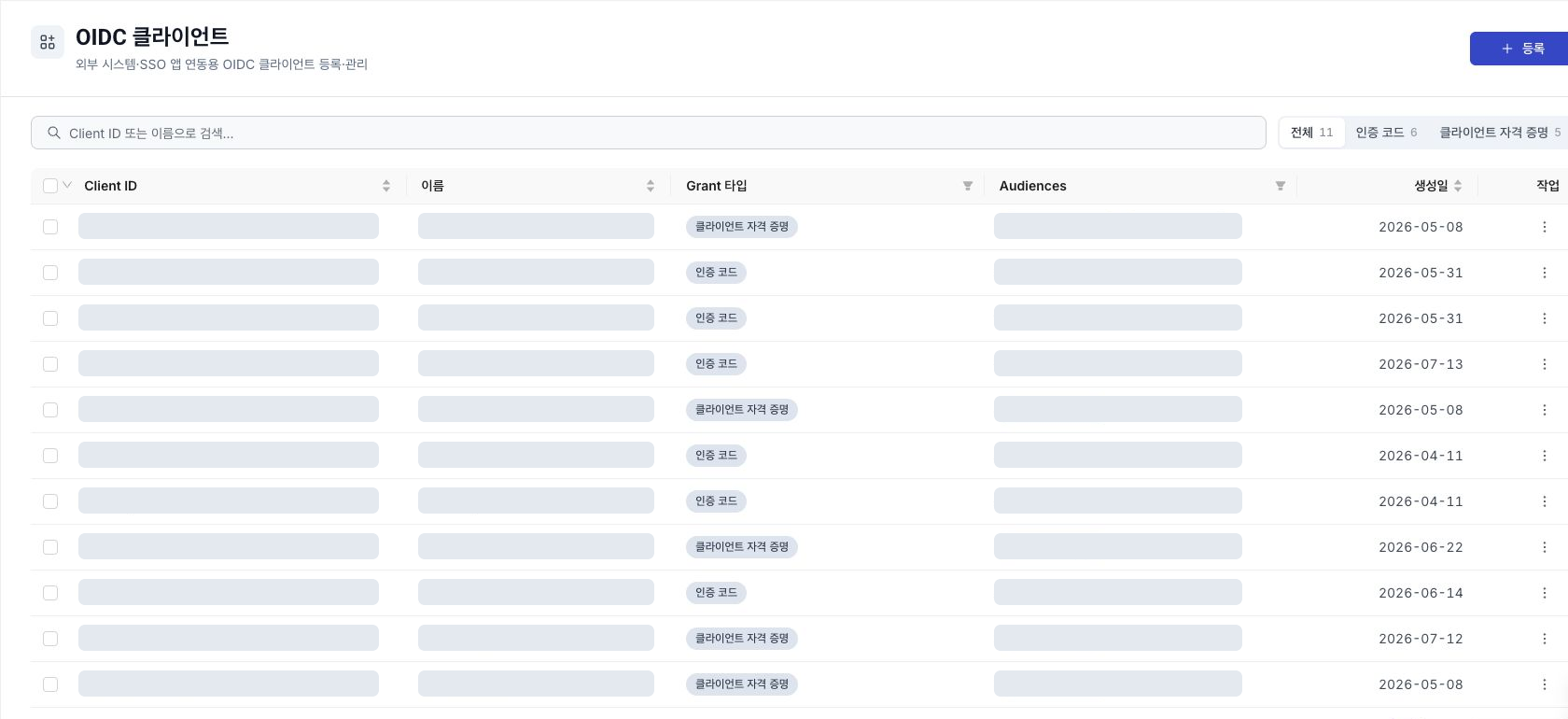
Client list
Registered clients appear in a table with Client ID, Name, Grant Type, Audiences, and Created columns.
- Search: Narrow the list by entering a Client ID, name, or audience.
- Filter: Select All / Authorization code / Client credentials to show clients by grant type.
- Open details: Select a row to open the edit screen.
Client and grant types
| Field | Options | Purpose |
|---|---|---|
| Client type | Confidential / Public | A Confidential client is a server-side client that can store a secret safely. A Public client is a browser or mobile client that cannot store a secret. |
| Grant type | Authorization code / Client credentials | Authorization code delegates user sign-in for an SSO application. Client credentials supports server-to-server calls without a user. |
New Public clients support SSO only and require PKCE. They cannot use refresh tokens, token exchange, or the client-credentials grant. Existing internal Portal clients retain their cookie-refresh settings.
Register apps that call APIs as a signed-in user with Confidential + Authorization code + PKCE. Keep tokens on the app’s BFF server. This currently covers apps trusted by your organization; opening access to external vendors requires API scope limits and verification of calls between services.
Register a client
-
Select Register at the top right of the list. The Register OIDC client screen opens.
-
Enter the fields in each section.
Field Required Description Client ID Required Unique identifier used to issue tokens. Use only letters, numbers, colons, underscores, and hyphens. Name Required A recognizable name for lists and audit records. Description Optional Records the client owner and purpose. Client type Required Select Confidential (default) or Public. Grant type Required Select exactly one: Authorization code or Client credentials. Require PKCE — Requires PKCE verification for authorization-code exchange. Allow refresh token — Issues refresh tokens to an external Confidential app’s BFF. Do not pass them to the browser. Redirect URI Required with authorization code Enter an HTTP or HTTPS address that receives the authorization code, then press Enter. Allowed audience Required with client credentials The target of M2M service tokens. The default is dhub2-manager; this field is hidden for user sign-in clients.Token exchange audiences Optional Select the services a Confidential client may exchange tokens for from the server catalog. An empty list denies exchange. 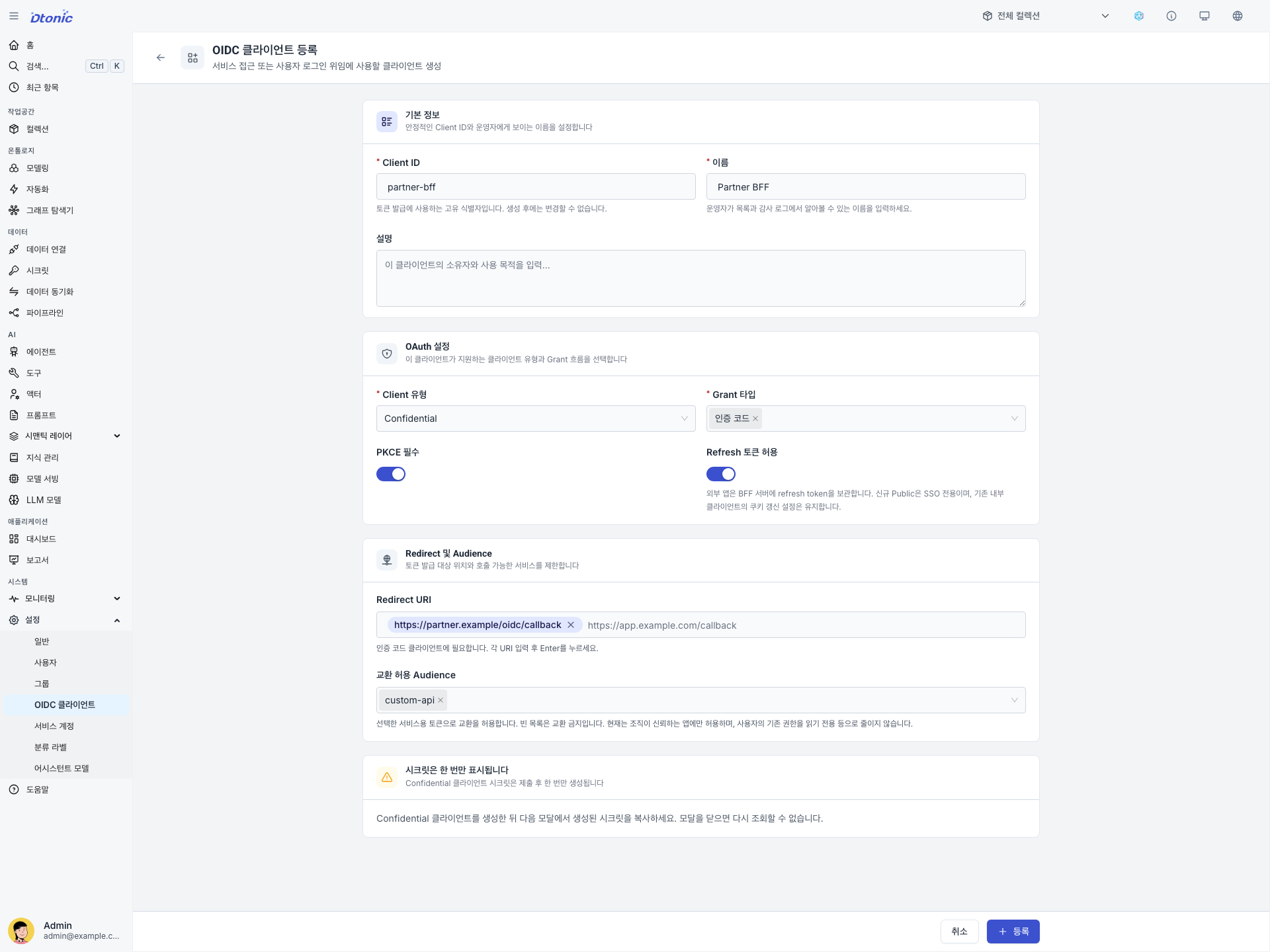
-
Select Register.
-
For a Confidential client, copy the displayed secret into secure storage.
-
Check the Client ID and grant type in the list, then check allowed exchange audiences on the edit screen’s Configuration tab. The list’s Audiences column shows the M2M allowed audiences.
On the edit screen, change the name, description, redirect URIs, PKCE, refresh permission, and audience policies. Register another client to change its identifier or authentication method.
Change exchange permissions
- Open the client edit screen’s Configuration tab.
- Select only the services needed in Token exchange audiences. Clear all selections to deny exchange.
- Select Save. The policy applies to subsequent exchange requests without restarting Manager. Tokens already issued may remain valid until expiry.
If the screen indicates that deployment settings still manage the policy, the current policy is preserved until you select audiences. To revoke it explicitly, select Deny token exchange and save. Editing only the name or description leaves the exchange policy unchanged.
If the catalog cannot load, check the Manager deployment and select Reload options. Do not work around the failure by entering arbitrary audiences or widening permissions.
Token exchange audiences restrict the services that receive tokens. They do not reduce a user’s existing write or delete permissions to read-only access. Per-app API scope limits are not yet supported.
Manage the client secret
After creating a Confidential client, its secret appears in the Client secret created dialog. Select Copy, store it securely, then select the confirmation checkbox before closing the dialog.
The secret value appears only immediately after creation or rotation and cannot be retrieved later. If it is lost, use Rotate secret to issue another.
To replace the secret, select Rotate secret from the row action menu or edit screen. Rotation can invalidate the previous secret immediately. Update the external service with the new secret before resuming its use.
Delete a client
Select Delete from the row action menu. The Delete button is enabled only after you enter the exact Client ID in the confirmation dialog.
After deletion, external services using this Client ID can no longer obtain tokens. Confirm that no integration still uses it.
Next steps
-
API authentication (Korean) — Implement BFF sign-in, token exchange, refresh, and logout.
-
Service accounts and access tokens — Manage automation accounts that authenticate with access tokens instead of OAuth integration.
-
Authentication and access control — Review sign-in methods and role-based access.