Create and manage datasets
Create a dataset for the required storage or connection method. After creation, review its metadata, schema, data, versions, usage, and lineage on the detail screen.
Choose a type
| Type | When to use |
|---|---|
delta | Use it when you need file uploads, pipeline loading, and data versioning. This is the default type. |
kafka | Collects real-time messages from a Kafka topic. |
rest | Connects an external REST API as a data source. |
object | Registers a file or object-store object as a unit of data. |
The type cannot be changed after creation. The legacy table type can no longer be registered.
Create a dataset
- In a collection or folder, select Add Item → Dataset, then choose a type.
- Under Basic Information, enter the name, alias, description, and tags.
- Complete the fields for the selected type.
delta: Select Empty table or Load PostgreSQL changes.rest: Enter one or more URLs.kafka: Optionally enter a topic.object: Continue to the next step; there are no additional connection fields.
- For any type other than
object, select Next, then add columns or import the schema from JSON or CSV. - Select Create.
- Confirm that the dataset appears in the tree and list of the selected collection or folder.
A delta dataset that keeps the default field1 column is saved with Create with temporary schema. You can initialize it with the actual columns when you upload a file.
Naming rules
A system name must begin with a lowercase letter and can contain only lowercase letters, numbers, and underscores (_). It can be up to 63 characters long and cannot be an analytical-engine SQL reserved word.
System names of datasets, sources, views, ontology entities, and relationships are checked together within the same collection. Enter a Korean display name as the alias.
Dataset detail screen
| Tab | What you review or do |
|---|---|
| Overview | Review the name, alias, type, description, tags, owning collection, and ingestion settings. |
| Schema | Review and edit the column structure. |
| Data | Query rows and run SQL, visualization, and file-upload tasks. |
| Version History | Review data versions and metadata change history. |
| Sharing and Permissions | Manage user and group roles. |
| Data Access Policy | Configure column- and row-level access. |
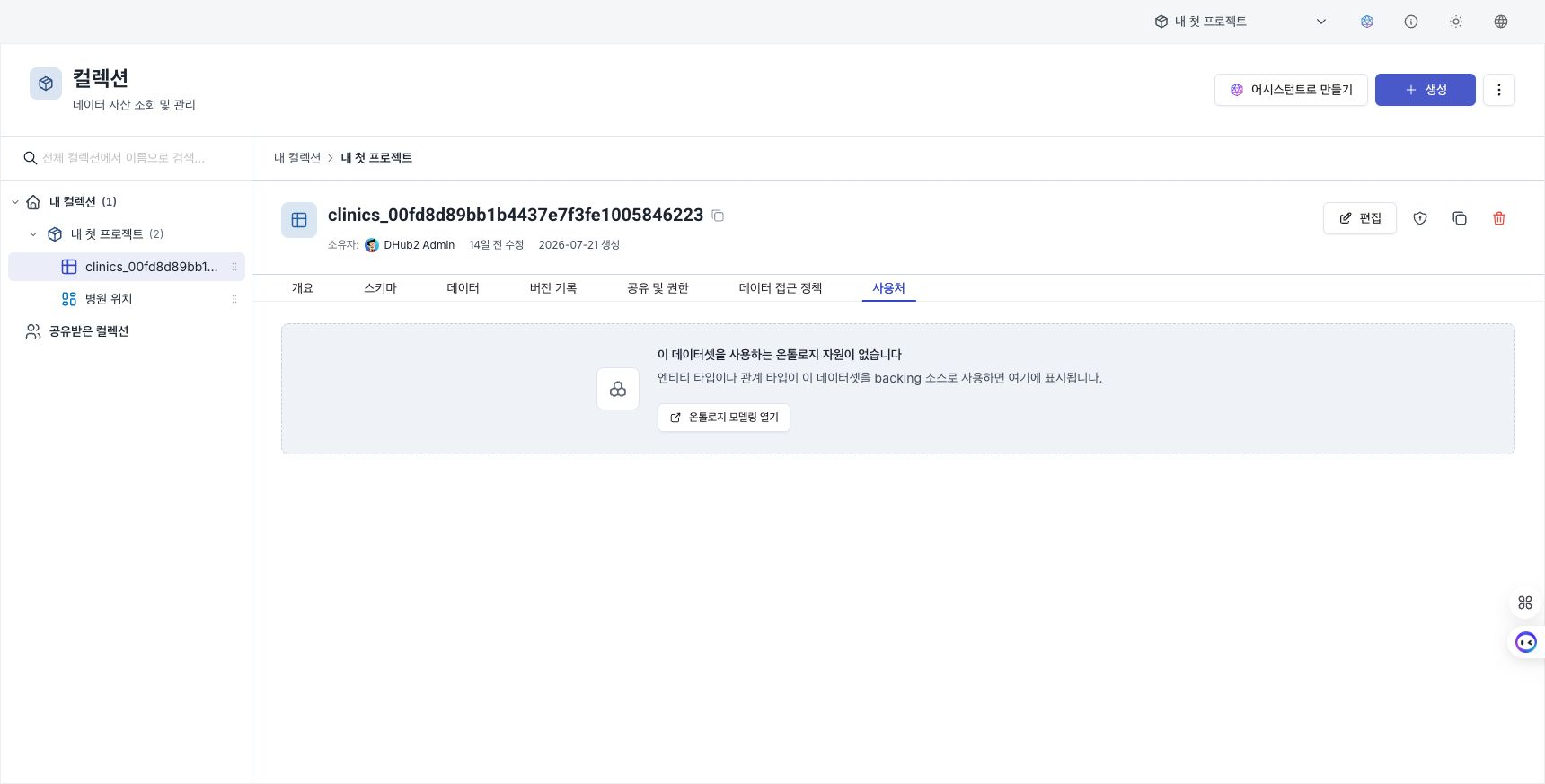
| Used By | Review ontology entities and relationships that use this dataset as a source. |
| Lineage | Review upstream and downstream assets connected through pipeline inputs and outputs. |
Edit the overview
- In the dataset details, open Overview.
- Select Edit in the detail header.
- Change the alias, description, and tags. For
rest, also check the URLs; forkafka, also check the topic. - Select Save Changes.
- Confirm that the new display information appears in the overview and the tree.
The system name and type cannot be changed after creation.
Configure PostgreSQL change ingestion
For a delta dataset created with PostgreSQL change ingestion, edit the connection, logical replication, and tuning values on the Overview tab. Select an existing PostgreSQL Data Connection or enter connection information directly.
Connection settings include the host, port, database, user, and password secret. In the logical replication and tuning settings, specify the schema, table, publication, replication slot, TLS, Fetch timeout, Max changes, and Commit interval.
Saved settings are not applied immediately to ingestion that is already running. Select Stop ingestion, then select Start ingestion again, and check the status. Review multiple executions together in Run Status.
Schema tab
For the procedure and constraints for adding columns or changing a column's name, type, or NULL allowance, see Dataset schema.
Data tab
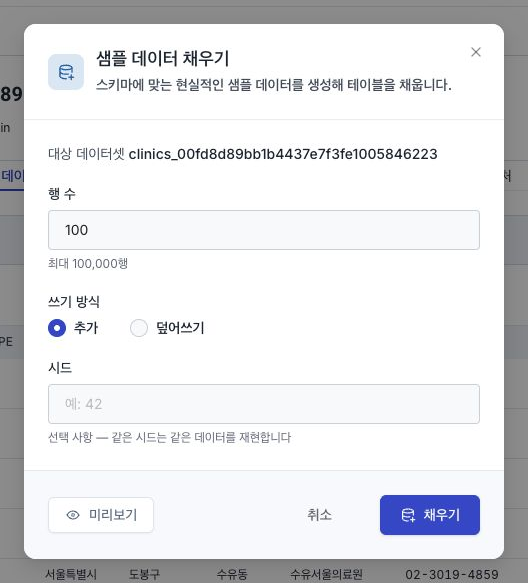
For row queries, the SQL scratchpad, file uploads, and filling sample data, see Dataset data.
Add data to an existing dataset
This procedure has moved to Upload files to an existing dataset. If you arrived from an existing bookmark, review the schema initialization, merge, and conflict conditions on the new page.
Version History tab
In Data versions, preview the snapshot for each data commit and download it as CSV or Parquet. In Metadata changes, restore the alias, description, tags, options, and schema to an earlier state.
Restoring metadata does not change table data. For the restoration scope of each asset, see Version history.
Review usage and lineage
Used By lists the ontology entities and relationships that use this dataset as a source. Select Open on an item to go to its definition in Ontology Builder.
Lineage shows upstream and downstream assets based on the inputs and outputs of pipelines you can read. For depth selection, display limits, and how to interpret an empty state, see Dataset lineage.
Check both tabs before deleting a dataset or changing its structure.
Next steps
- Define columns in Dataset schema.
- Upload files and review data in Dataset data.
- Review the pipeline impact in Dataset lineage.