Graph Explorer
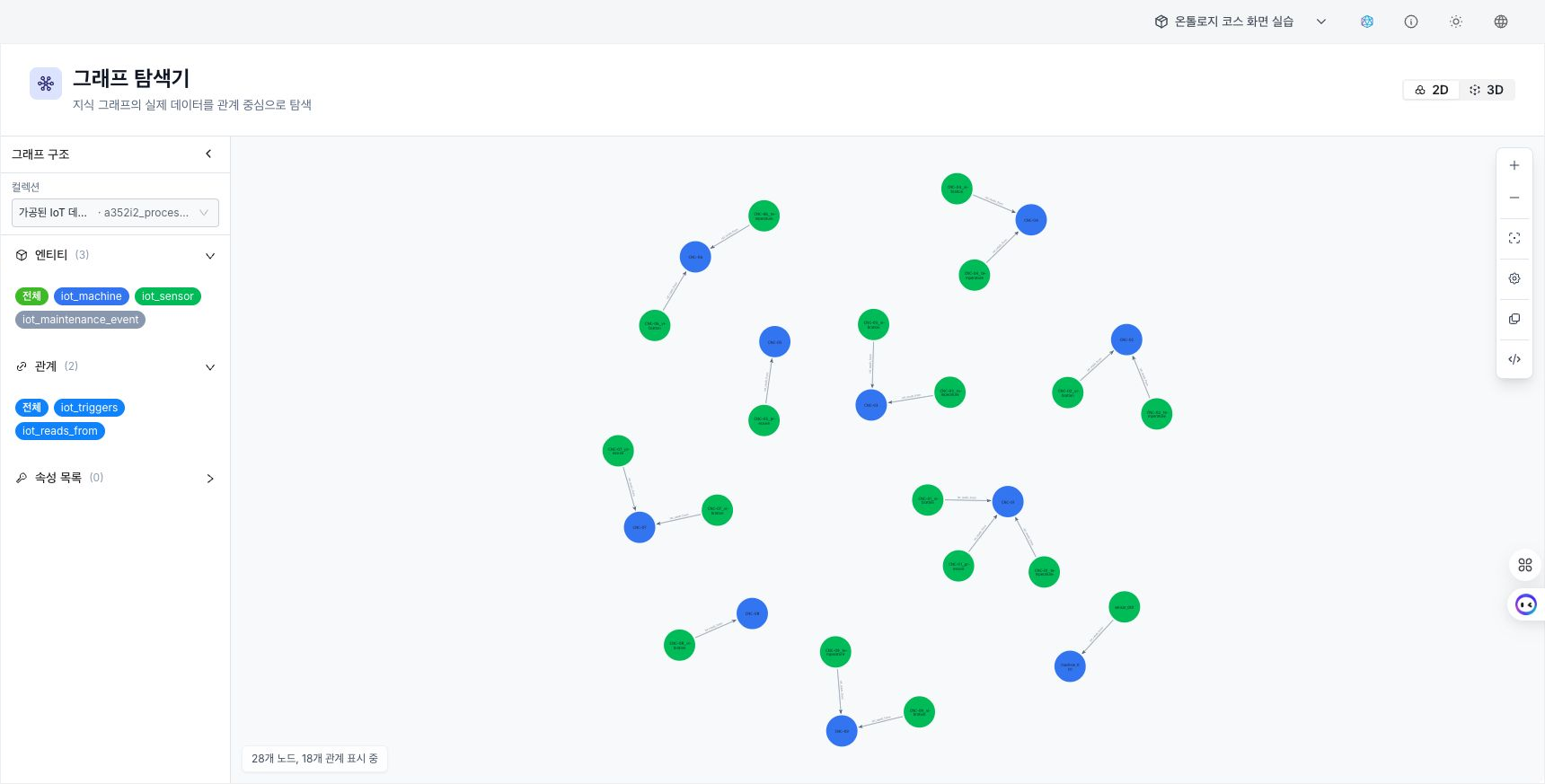
Use Graph Explorer to review ontology entities and relationships you can access. Regular users explore by selecting entity and relationship types. Administrators can also use the Cypher query console when needed.
URL deep link
When a link contains a model and entity or relationship type, Graph Explorer selects that scope and loads the type data. A link containing raw Cypher runs only for an administrator. After the initial input is handled, those values are removed from the URL; the current selection and results are not stored in it.
Screen composition

1. Metadata panel
The left panel shows graph structure information for the selected model.
- Labels: List of defined entity labels (e.g. Person, Company).
- The number of nodes is displayed next to each label.
- Relationship Types: List of defined relationship types (e.g. BOUGHT, MANAGED).
- The number of relationships is displayed next to each type.
- Property Keys: List of property keys currently in use.
- Selecting an item retrieves that type within the current user's read permissions.
2. Visualization area
The middle screen shows the searched data as a graph consisting of nodes and links.
- Screen manipulation: You can drag nodes to move them or zoom in/out.
- Detailed Information: When you click on a node or link, the property information of that element appears.
- Continue navigation: Double-clicking a node brings up additional neighboring nodes connected to that node.
- Placement method: Nodes are automatically positioned as if they are pushing and pulling each other (automatic placement, force-directed), and can be moved manually if necessary.
3. Query editor — administrators only
Only administrators see the Cypher query panel at the bottom. Regular users retrieve data by selecting types in the metadata panel.
- Query input: Supports Cypher, a query language widely used in graph databases.
- Run: When you run the query, the results are reflected in the visualization area.
- View results: You can check the results in graph, table, or text format.
Only administrators can use the query console. Placing a query directly in a URL does not execute it for a regular user.
Administrators: use Cypher queries
Basic pattern matching
-- Query all Person nodes
MATCH (p:Person)
RETURN p
LIMIT 100

-- Query nodes connected by a specific relationship
MATCH (p:Person)-[:BOUGHT]->(product:Product)
RETURN p, product
LIMIT 50

-- Filter by condition
MATCH (p:Person)-[:BOUGHT]->(product)
WHERE p.age > 30 AND product.price > 10000
RETURN p, product
Aggregate queries
-- Count nodes by label
MATCH (n)
RETURN labels(n) as label, count(*) as count
ORDER BY count DESC

-- Statistics by relationship
MATCH ()-[r]->()
RETURN type(r) as relationship, count(*) as count
ORDER BY count DESC

-- Customer with the most purchases
MATCH (p:Person)-[:BOUGHT]->(product)
RETURN p.name, count(product) as purchase_count
ORDER BY purchase_count DESC
LIMIT 10
Path navigation
-- Shortest path between two nodes
MATCH path = shortestPath(
  (a:Person {name: "Alice"})-[*]-(b:Person {name: "Bob"})
)
RETURN path

-- Query N-hop neighbors
MATCH (p:Person {name: "Alice"})-[*1..3]-(neighbor)
RETURN DISTINCT neighbor
LIMIT 50
Useful Cypher functions
| function | Description | Example |
|---|---|---|
count() | Counting | count(n) |
collect() | Collect by list | collect(n.name) |
labels() | node label lookup | labels(n) |
type() | Relationship type query | type(r) |
properties() | View all properties | properties(n) |
size() | list size | size(collect(n)) |
coalesce() | NULL replacement value | coalesce(n.name, "Unknown") |
Result View Mode
Graph View
- Nodes and relationships are shown graphically.
- Node color is automatically determined according to the label.
- Node size can be adjusted according to attribute values.
table view
- Shows query results in table format.
- You can sort or filter columns.
text view
- Results are shown in unprocessed JSON format.
- Useful for investigating problems or checking data in detail.
Data Exploration Tips
- If you only want to see nodes with a specific label, click on that label in the metadata panel.
- As an administrator, use a
MATCHstatement in the query editor for complex conditions. - If there are too many nodes and it is complicated, reduce the number of queries using the
LIMITclause. - To speed up the search, filter the search by indexed properties as much as possible.